Fixed Cameras/Units Troubleshooting Guide
1. Purpose
This document provides step-by-step instructions for customers to troubleshoot common power and connectivity issues for surveillance systems. Following these steps may help restore service without requiring support intervention.
2. Identify Your Site Type
Fixed Sites
- Installed inside your facility/network room
- Uses your power and internet
- Includes equipment such as:
- Router
- Switches
- Storage (NAS)
Common Issues:
- Power interruptions in the network room or at the switch locations.
- Internet/network issues.
3. Troubleshooting Steps
Fixed Sites (Power + Internet Troubleshooting)
Step 1: Check for Physical Damage
- Inspect all devices and cables
- Ensure nothing is loose or damaged
Step 2: Verify Power
- Confirm all equipment is powered ON
- Check:
- Wall outlets
- Network room power
- Indicator lights on devices
Step 3: Check Internet Connectivity
- Verify internet is working:
- Test using a phone or laptop
- Check modem/router status lights
Step 4: Verify Connections
- Ensure:
- All cables are securely connected
- Devices are plugged into correct ports
Step 5: Reboot All Devices
- Turn OFF:
- Router
- Switches
- NAS
- Wait 30 seconds
- Turn ON in this order:
- Router
- Switches
- NAS
Allow 5–10 minutes for full recovery
Reference Images of the Pro-Vigil Equipment :
Synology NAS:
Networking Switch :
Router:
UPS :
4. Final Verification
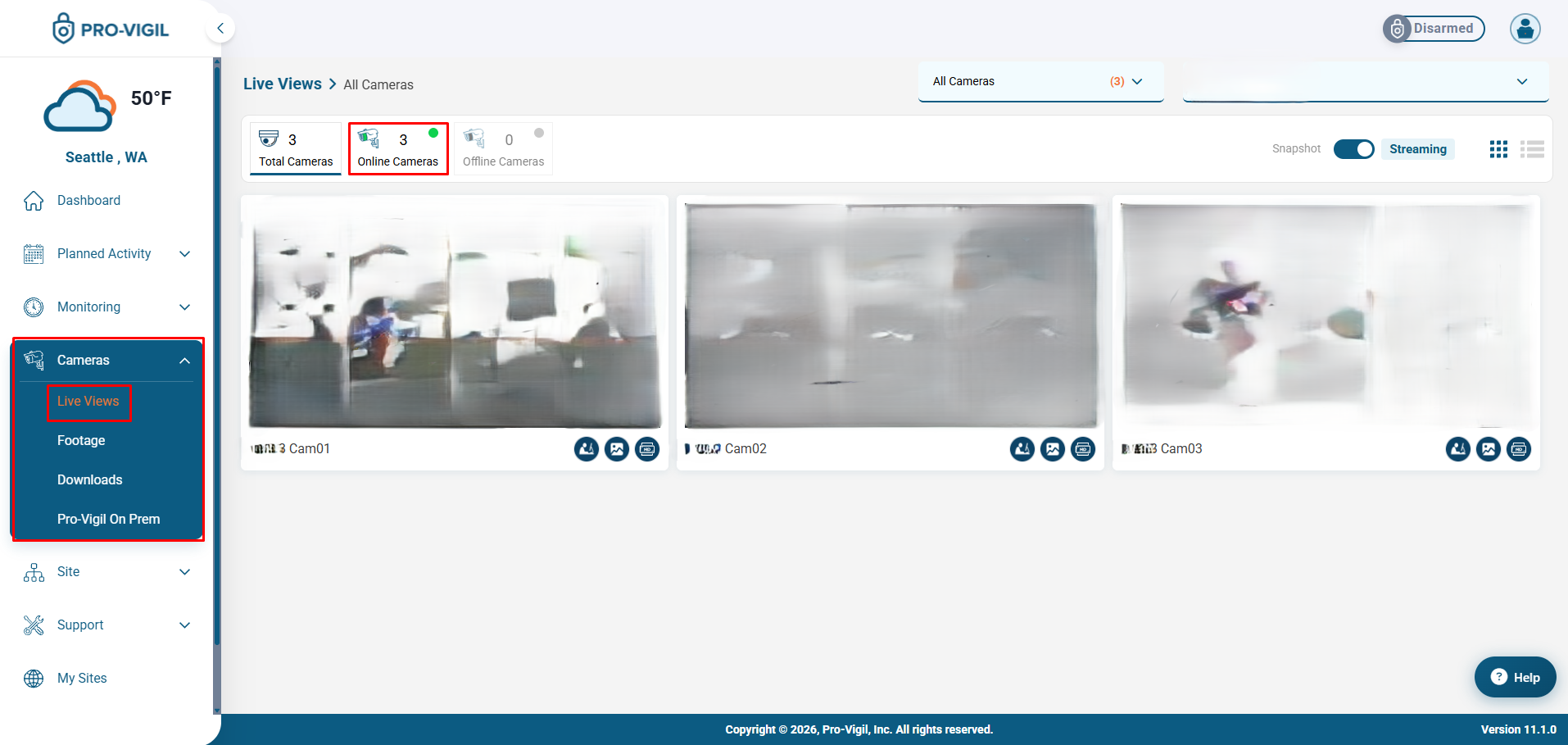
Check System Status
Step 1 : Log in to the Customer Portal
Step 2 : Look for the Cameras Tab ( Live views )
Step 3 : Verify if the live views are visible
Note : If the Cameras are Online, you should be able to see the cameras running on the online Cameras tab in the Live views.
5. When to Contact Support
If the issue persists after completing all steps, please contact Customer Support with:
- Site Name / Location
- Description of the issue
- Steps already performed